




🌿 About AniTala
A Community-Driven Plant Mapping and Geo-Tagging Web Application
AniTala connects farmers, gardeners, and plant lovers to share, sell, and discover plants in a sustainable, tech-powered way.
👉 Pinagdurugtong ng AniTala ang mga magsasaka, hardinero, at plant lovers para magbahagi, magbenta, at magdiskubre ng mga halaman gamit ang teknolohiya.
🌱 Plant Visualization
View and explore plants on an interactive map.
Makikita at mae-explore mo ang mga halaman sa isang interactive na mapa.
- Step 1: Open Plant Visualization from the main menu.
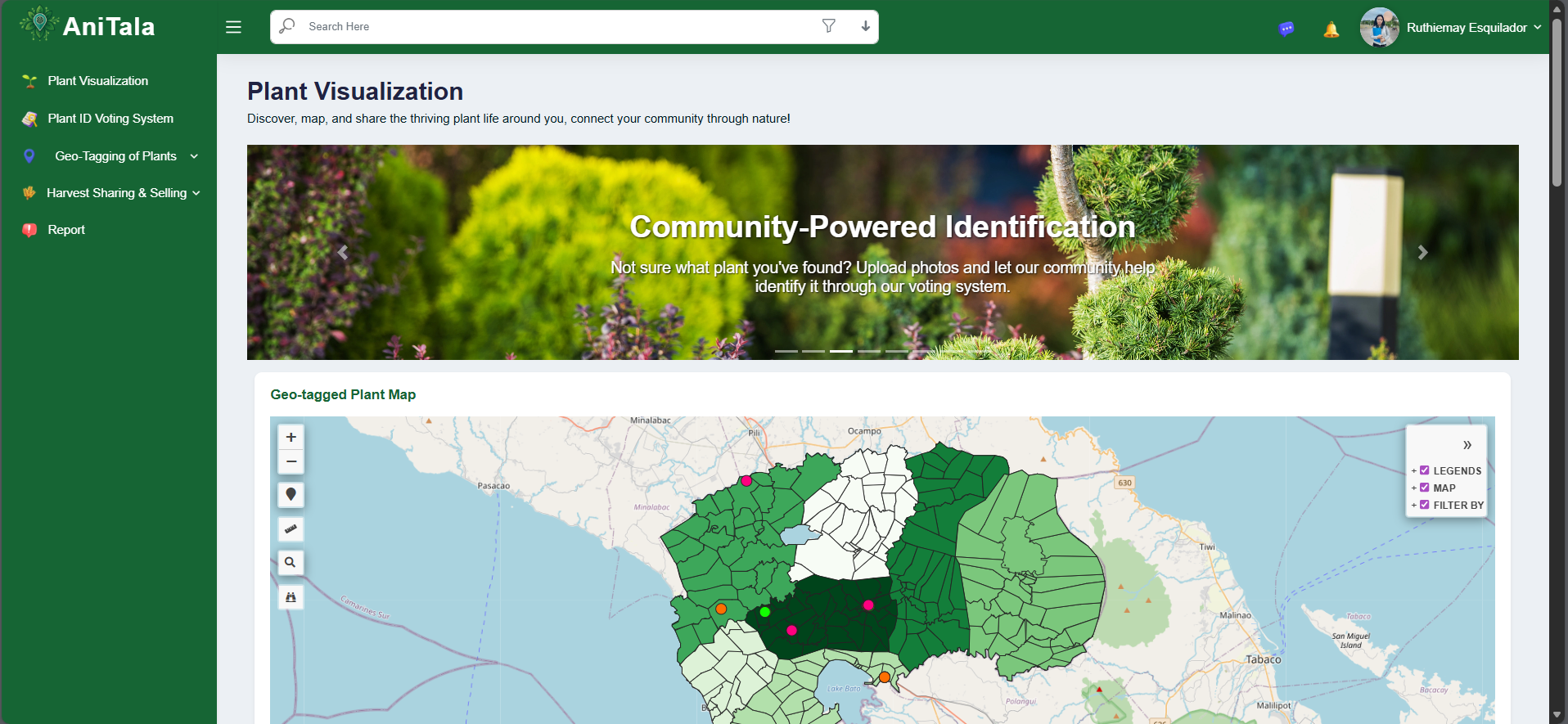
- Step 2: Drag or zoom on the map to explore.
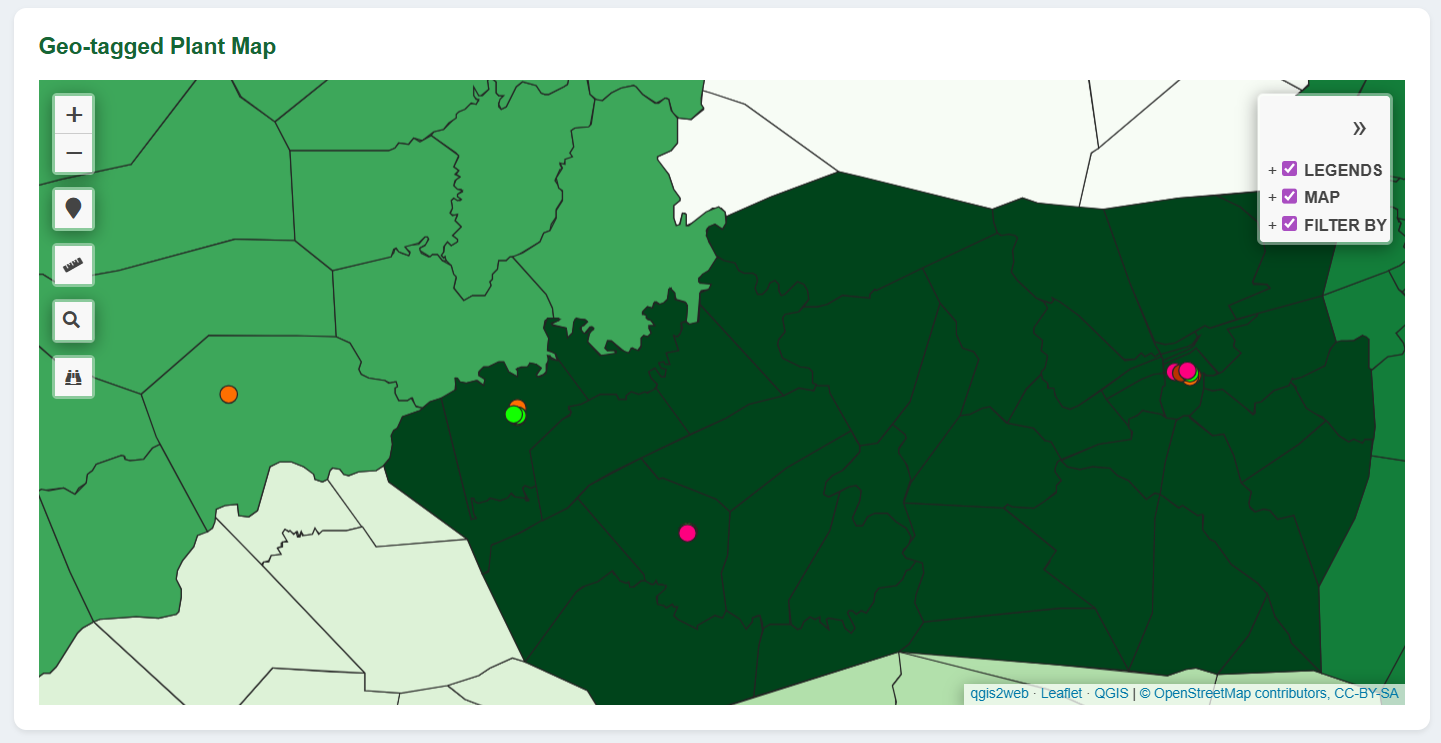
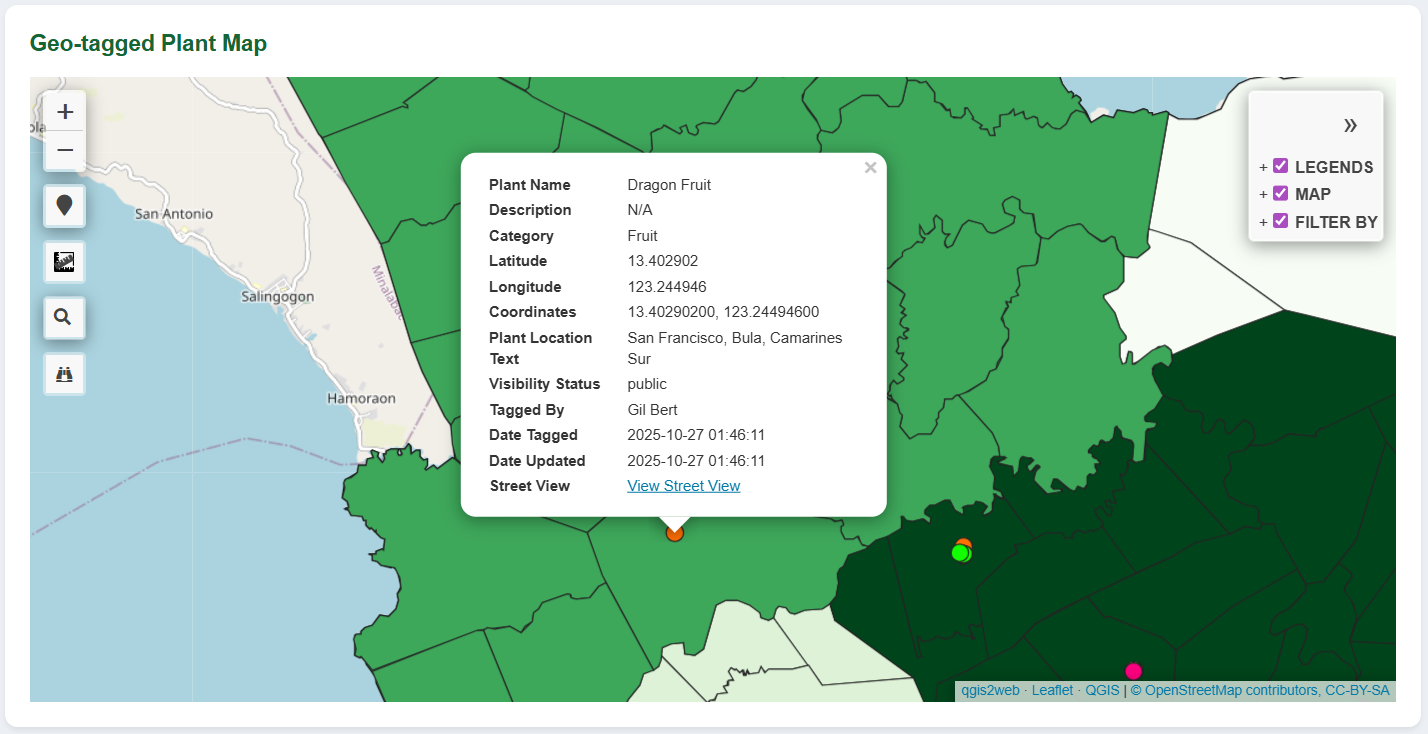
- Step 3: Click a marker to view plant info or open full details.
- Step 4: Switch list/grid view or apply filters if needed.
- Step 5: Click Copy Link to share a plant.
🧬 Plant ID Voting System
Identify plants with the help of the community.
Tumulong at makipagtulungan sa iba para malaman kung anong halaman ang nasa larawan.
- Step 1: Go to Plant ID from the menu.
- Step 2: Upload a photo of the plant you want to identify.
- Step 3: Add description and submit.
- Step 4: Other users can vote or suggest plant names.
- Step 5: You'll get notifications when someone votes or comments.
📍 Geo-Tagging of Plants
Pin your plant's exact location on the map.
I-tag ang lokasyon ng iyong halaman sa mapa.
- Step 1: Open Geo-Tagging from the menu.
- Step 2: Click Add New or drop a pin on the map.
- Step 3: Fill in plant details and upload photos.
- Step 4: Save your tag to add it on the map.
- Step 5: Edit or delete anytime.
🥕 Harvest Sharing & Selling
Share or sell your harvests and chat with others.
Ibahagi o ibenta ang iyong ani at makipag-chat sa mga interesado.
- Step 1: Open Harvest Sharing & Selling from the menu.
- Step 2: Click New Listing to create your post.
- Step 3: Add title, description, price, and upload photos.
- Step 4: Turn on "Enable Chat" so others can message you.
- Step 5: Publish your listing.
- Step 6: Use chat to talk to buyers or sharers.
- Step 7: Mark as Reserved or Sold after transaction.
📊 Report
View and export data about plants and harvests.
Makakita ng mga ulat at chart tungkol sa mga halaman at ani.
- Step 1: Go to Reports from the menu.
- Step 2: Choose a report type (Plant, Harvest, User, etc.).
- Step 3: Set filters like date or category.
- Step 4: Click Generate to view the report.
- Step 5: Export or print if needed.
💬 Chats
Message buyers, sellers, or other users directly.
Makipag-usap nang direkta sa mga users.
- Step 1: Click the Chat icon to open your inbox.
- Step 2: Select a chat or start a new one.
- Step 3: Send text or photos.
- Step 4: Use chat for harvest transactions or plant discussions.
🔔 Notifications
Stay updated on votes, messages, and listings.
Manatiling updated sa mga boto, mensahe, at activities.
- Step 1: Click the bell icon to see notifications.
- Step 2: Tap a notification to open it.
- Step 3: Mark as read or clear notifications if needed.
👤 Manage Profile
Update your info and settings.
Baguhin o i-update ang iyong impormasyon at settings.
- Step 1: Go to your profile page.
- Step 2: Edit name, bio, contact info, and password.
- Step 3: Upload a profile photo.
- Step 4: Save your changes.
🔎 Search Bar
Quickly find plants, listings, or users.
Maghanap ng halaman, post, o user nang mabilis.
- Type a keyword in the search bar (hal. "tomato", "for sale").
- Apply filters to narrow results.
- Click a result to open it.
- Clear filters to see all again.
❓ Frequently Asked Questions
Why isn't my plant showing up publicly?
New plants may need admin approval before appearing in public searches. Check your plant's validation status in "My Plants" to see if it's pending review.
How accurate is the Plant ID feature?
Our AI provides suggestions based on visual analysis, but community verification is encouraged. Multiple suggestions and votes from experienced users help improve accuracy over time.
Can I delete my account?
Yes, you can deactivate or delete your account from Profile → Settings. Please note that this action may be irreversible and will remove all your contributed data.
How do I contact other users?
Use the chat feature available in the navigation menu to message other community members directly. This is perfect for discussing plants, arranging harvests, or sharing growing tips.
Is AniTala free to use?
Yes, AniTala is completely free to use. You can identify plants, share locations, connect with the community, and even sell harvests without any fees.